
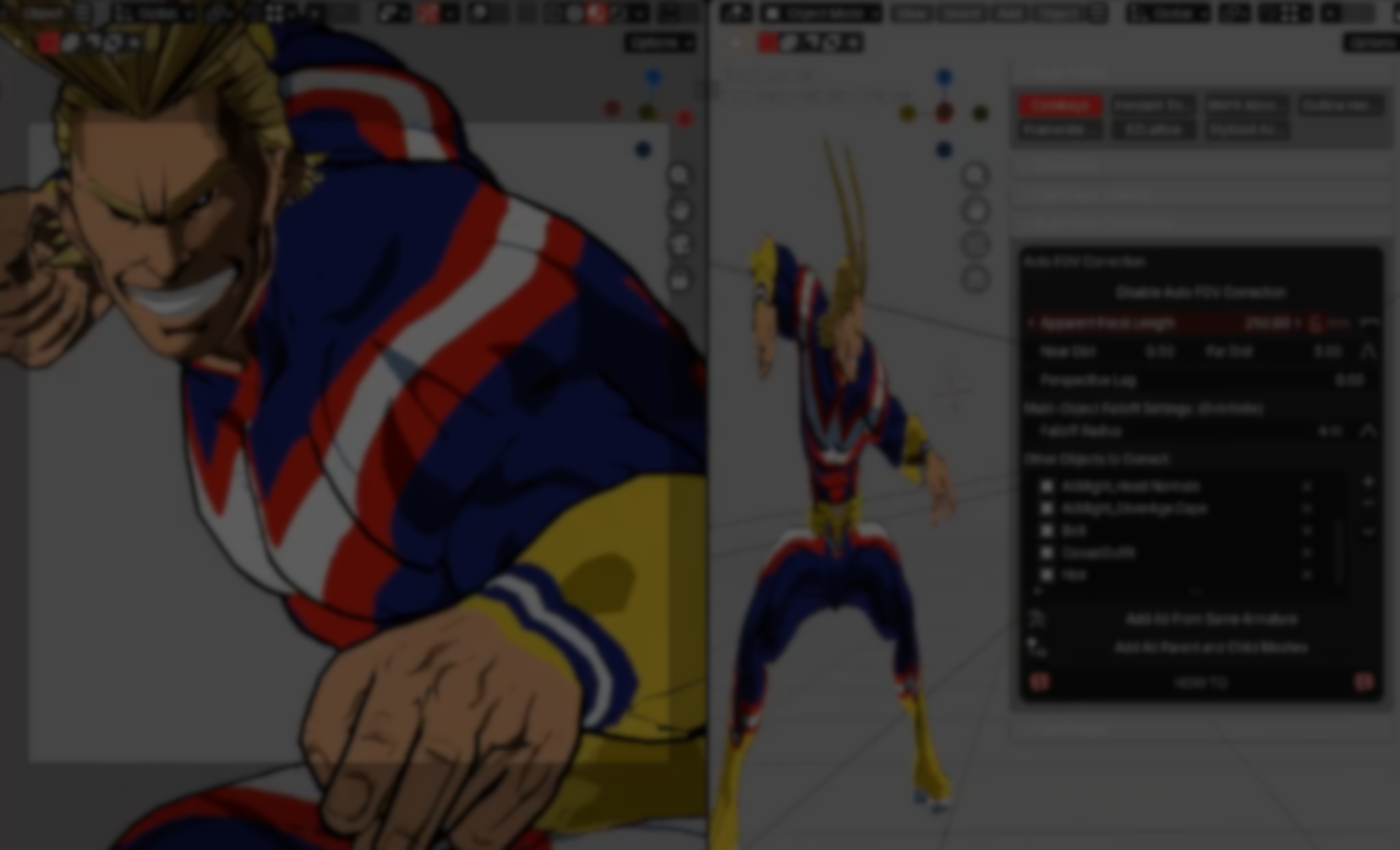
Small visual adjustments based on camera angle are common in stylized animation, NPR workflows, and character presentation, but they’re usually handled manually. Artists compensate for profile views, bake corrective Shape Keys, or tweak rigs shot by shot.
CamKeys, a Blender add-on by BeyondDev, approaches that problem from a different angle. Instead of animating Shape Keys directly, it drives them automatically based on the relative orientation or distance between the camera and an object.
The result is a lightweight system for camera-aware deformations that works entirely within Blender’s existing Shape Key workflow.
What CamKeys Does
At its core, CamKeys links camera data to Shape Keys.
For each object, you can store one or more reference camera angles and associate them with Shape Keys. As the camera moves, the add-on blends Shape Key values automatically based on how close the current view is to those stored angles.
Typical use cases include:
- Correcting anime-style faces where front and side profiles don’t match
- Creating camera-based optical illusions
- Adjusting outlines or silhouettes depending on view direction
- Presentation-driven deformations for stylized assets
The system works in real time and does not require custom shaders or external tools.
How the Add-on Is Structured
CamKeys is organized into three main UI sections, designed to keep setup explicit and predictable.
Select Camera
You can choose whether CamKeys uses:
- A specific scene camera, or
- The current 3D viewport perspective
Important note: Keyframe baking only works when a camera is selected, not when using the viewport.
Mesh Objects
This section manages which objects are affected:
- Add or remove mesh objects from the list
- For rigged meshes, optionally select a specific bone to track
- Enable or disable objects individually
This makes it possible to drive multiple objects with different behaviors from the same camera.
Camera Angles and Shape Keys
For each object, you can:
- Capture the current camera angle as a “CamKey”
- Assign a Shape Key to that angle
- Define how many degrees the Shape Key blends over
- Enable or disable individual CamKeys
CamKeys can be layered, allowing several directional corrections to blend together smoothly.
Baking and Animation Use
Once configured, CamKeys can bake the driven Shape Key values into standard Blender keyframes across a frame range. This makes the results usable in pipelines where procedural evaluation isn’t desirable at render time.
Practical tips:
- Switch to Camera mode before baking
- Use multiple CamKeys per object for complex direction changes
- Keep falloff angles generous to avoid harsh transitions
Recent Update v3.0.5: Distance-Based Prop Driving
The new small update released recently extends the system beyond camera angle alone.
CamKeys v3.0.5 adds distance-based prop driving, allowing objects to react purely to how close or far the camera is, rather than its orientation.
You can right-click almost any compatible property in Blender and select “Make Cam Prop”, then enable Distance Only for that prop. This is particularly useful for:
- Line thickness or outline visibility
- Simple LOD-style deformations
- Presentation tweaks that depend on camera proximity
Like the rest of the add-on, the feature favors minimal setup and explicit control, without hidden automation.
#camkeys v3.0.5 released. Improve visibility of your outlines! New feature: distance-based prop driving! Right click almost any* prop in blender > select "Make Cam Prop" > Enable "Distance Only" for that prop. #b3d #npr #indieanime pic.twitter.com/RKu7pwMAgO
— Beyond Dev - Tyler Walker (@realBeyondDev) December 18, 2025
When CamKeys Makes Sense
CamKeys is best suited for workflows where camera context matters:
- NPR or anime-style characters
- Assets that need view-dependent correction
- Stylized props designed for presentation rather than realism
- Situations where manual Shape Key animation would be repetitive
It’s not a general deformation system, and it doesn’t replace rigging or corrective Shape Keys. Instead, it automates a very specific and common adjustment that is often made by hand.
Similar and Useful Alternatives
- Camera Shakify: A free Blender add-on that adds dynamic camera shake and motion effects to camera animations, streamlining camera movement polish for cinematic shots.
Differences: Camera Shakify does camera animation enhancements, shake, jitter, motion effects, but does not drive mesh deformation via Shape Keys based on view angle. CamKeys affects the geometry of objects rather than camera motion itself.
- AutoCam: A free addon that simplifies camera movement animation, offering quick flythroughs, path conversion and more intuitive camera motion workflows.
Differences: AutoCam focuses on camera path and keyframe automation for smoothing and animating cameras. It does not interact with object Shape Keys or mesh deformations the way CamKeys does. It’s useful for cinematics but not for mesh-morph logic.
✨ CamKeys is now available on Gumroad.
📘 Interested in creating your own Tools and Shaders? Check out the Godot Shaders & Blender Tools Bundle, which includes: Blender Tool Development Fundamentals and The Godot Shaders Bible.
📘 Interested in creating your own Tools and Shaders? Check out the Godot Shaders & Blender Tools Bundle, which includes: Blender Tool Development Fundamentals and The Godot Shaders Bible.
Our best-selling indie Bundle: Godot shaders + Blender tools ✨ https://t.co/zSlHDCuGVC#b3d #GodotEngine #3DCG pic.twitter.com/sjdYxXjKUB
— The Unity Shaders Bible (@ushadersbible) November 16, 2025
Other posts that might interest you.
-
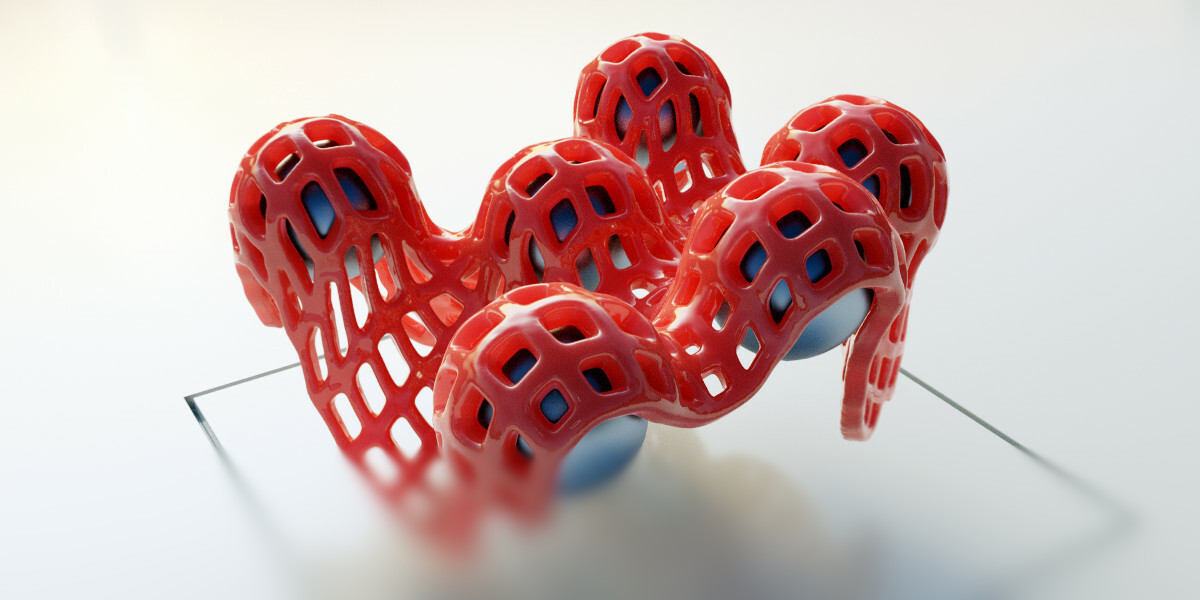 We break down a large update to FLIP Fluids, a long-running liquid simulation add-on for Blender.
 -
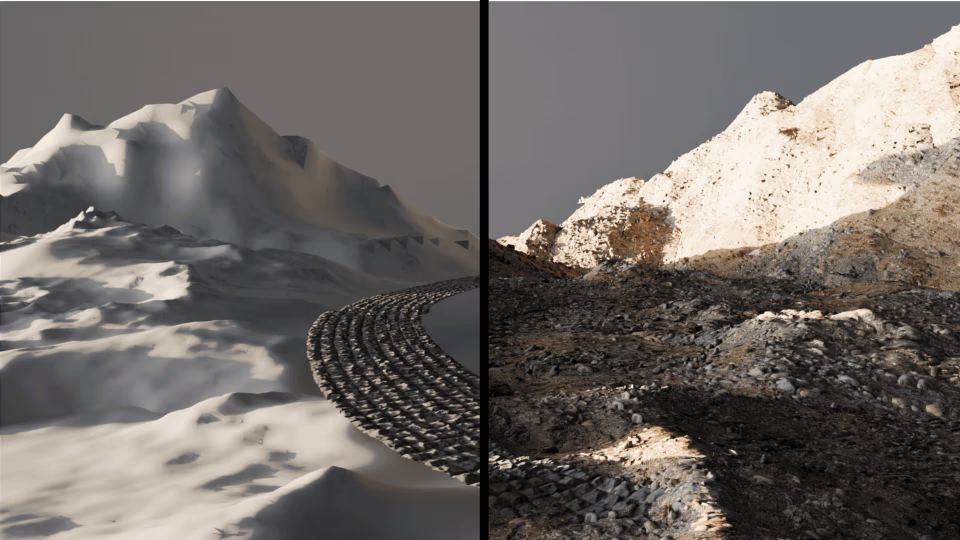 We take a look at a free Blender add-on for wrapping terrain and surface scans.
 -
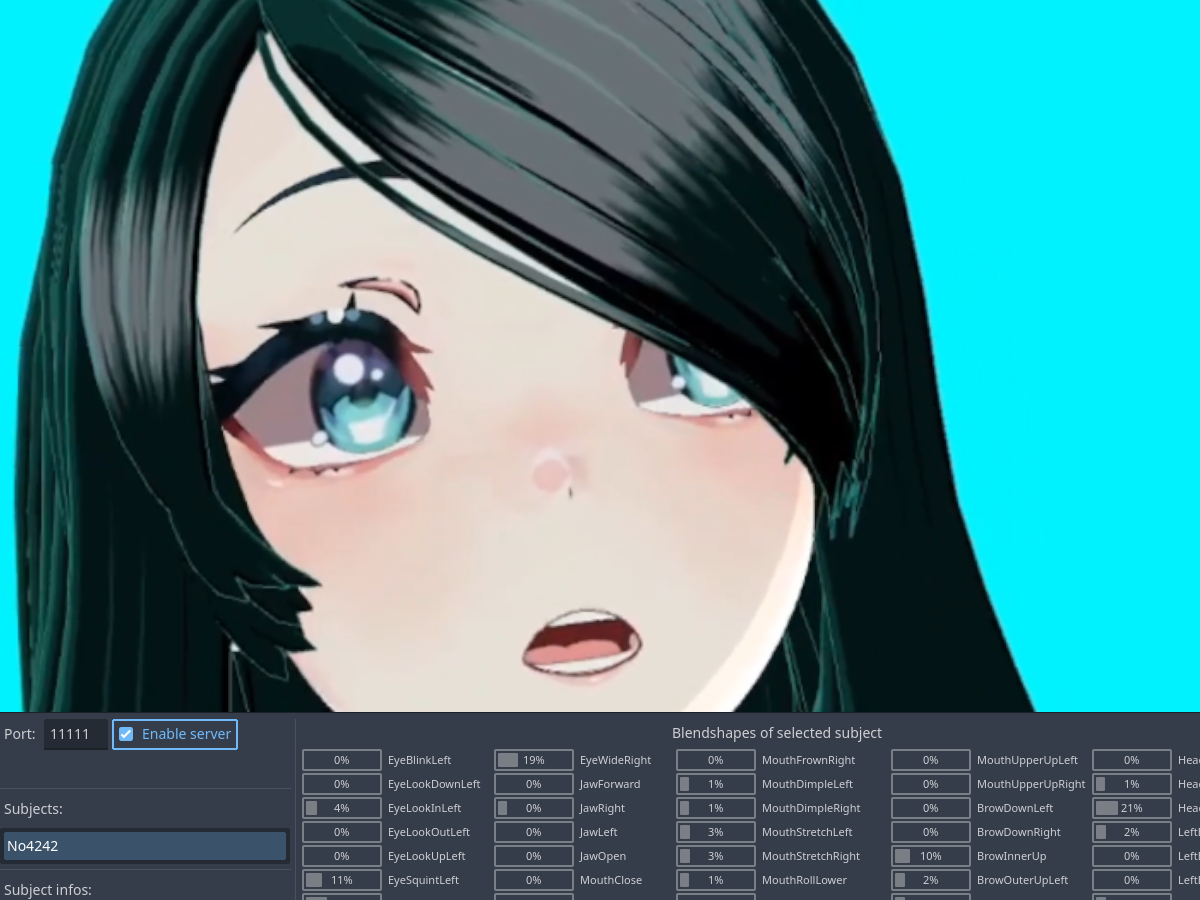 We take a look at a free Godot asset to capture facial motion data from your phone.
