
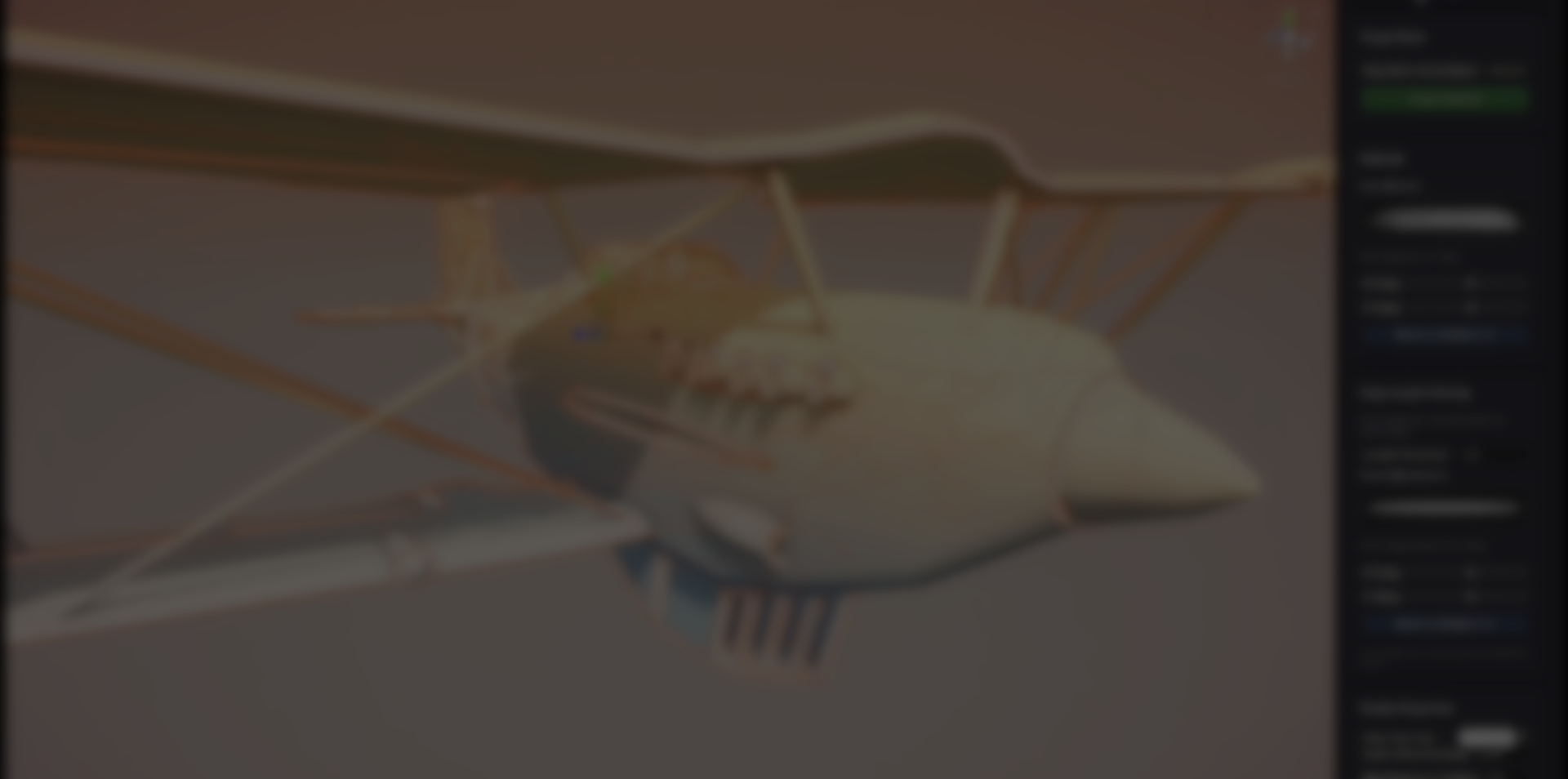
Sometimes a clean 3D render is not enough and you want your scene to look like it was drawn with pencil and ink. Croquis Sketch Editor, created by neagudev and published as Croquis Apps, is a Unity editor toolset that generates sketch-like edge meshes and applies custom materials on top of your existing models to create that hand drawn look directly in the engine.
Croquis is not a post process filter. It analyzes your meshes, extracts meaningful edges, and builds separate “ink” meshes that you can style, clean, and edit. The workflow is built around three main editors: Sketch Editor, Styles Editor, and Edge Cleaner, which together give you a complete sketch pipeline inside Unity.
What Croquis Sketch Editor Does
Croquis Sketch Editor is designed to generate dynamic, sketch-like edge meshes from your existing models and give you control over how those lines look and behave.
In practice, it lets you:
- Take any mesh in your scene and generate stylized edge lines on top of it.
- Control line thickness, offset, flares and basic look through presets.
- Clean up unwanted strokes with an editor focused on selection and cleanup.
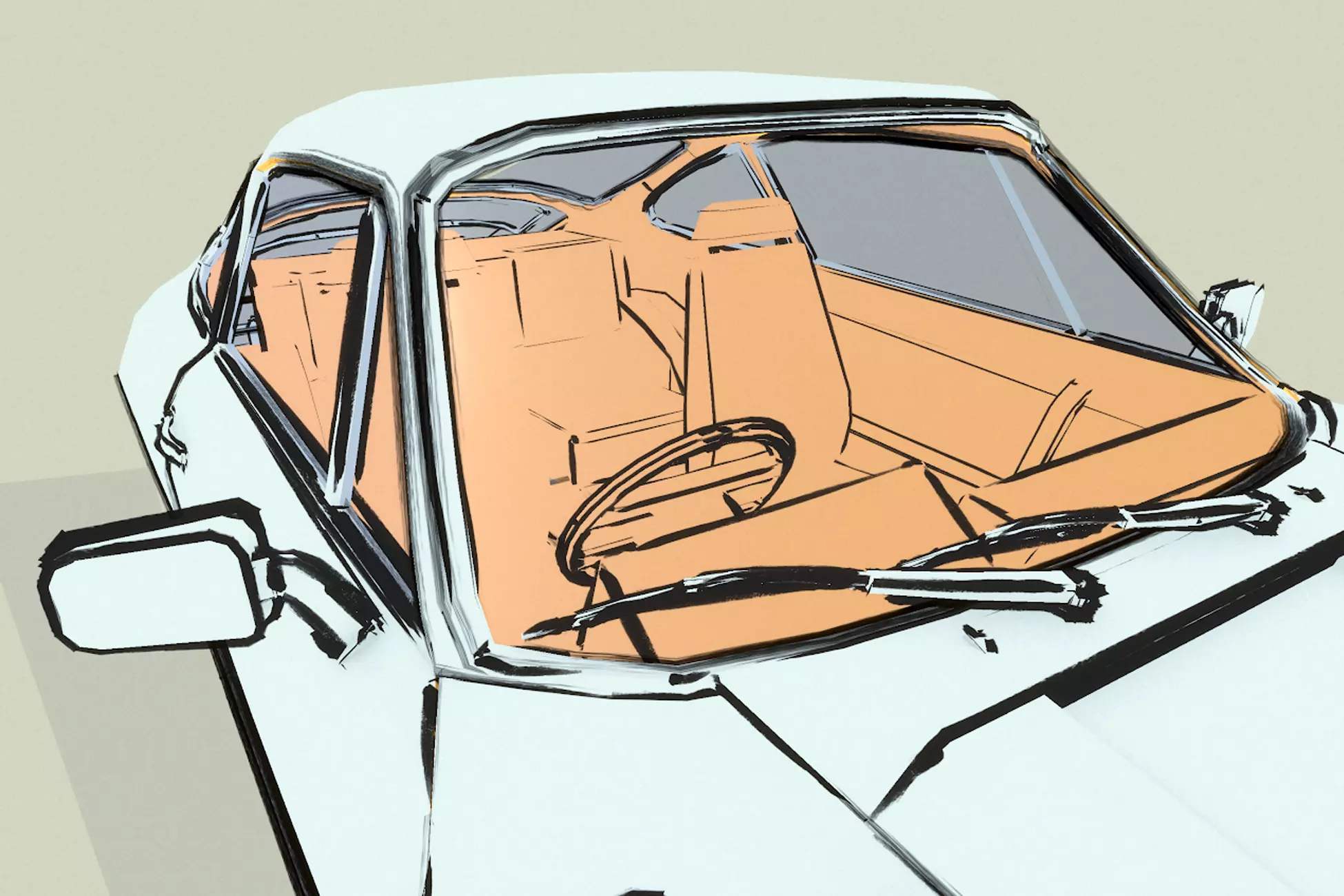
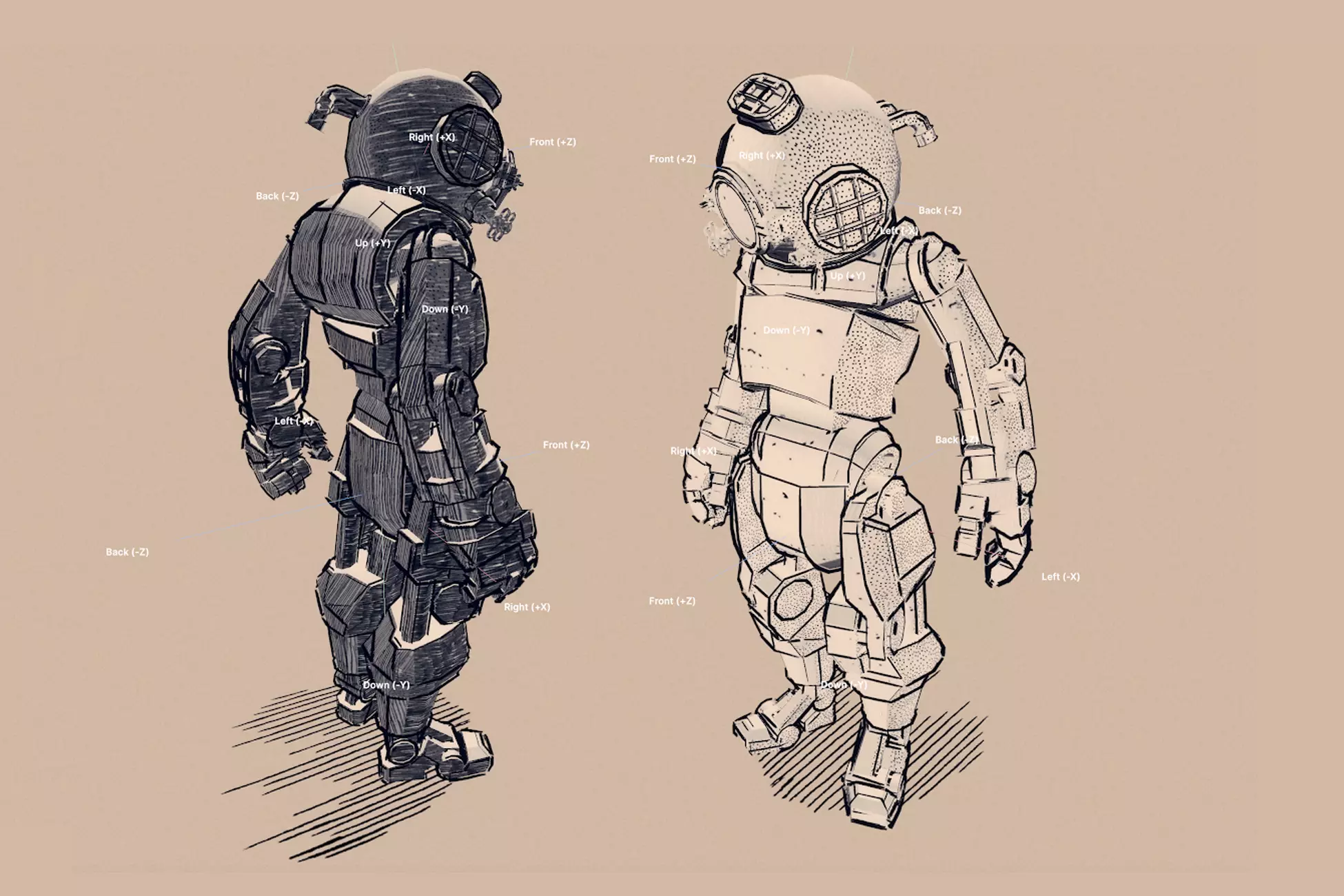
- Apply custom pencil, ink or brush materials and fine tune how they tile and fade with distance.
It targets projects that want a hand drawn or technical illustration look: stylized games, real time visualization, animated shorts, or NPR concept scenes.
The Three Core Editors
Sketch Editor – Generate the Lines
The Sketch Editor is where you turn a regular mesh into a sketch mesh. You select a GameObject with a MeshFilter, set it as the target, and Croquis generates a separate mesh that holds all the “ink” geometry.
From there you can:
- Pick the target mesh with a simple “Target Selected” action.
- Adjust edge length ranges so only meaningful contours and details become lines.
- Offset lines slightly from the surface to avoid z fighting.
- Enable optional flares at the ends of strokes for a more organic look.
- Use built in material presets (Thin, Medium, Thick) as a starting point.
The result is an edge mesh (and optional flare mesh) parented under your original object, ready to be styled.
Styles Editor – Turn Lines Into a Visual Style
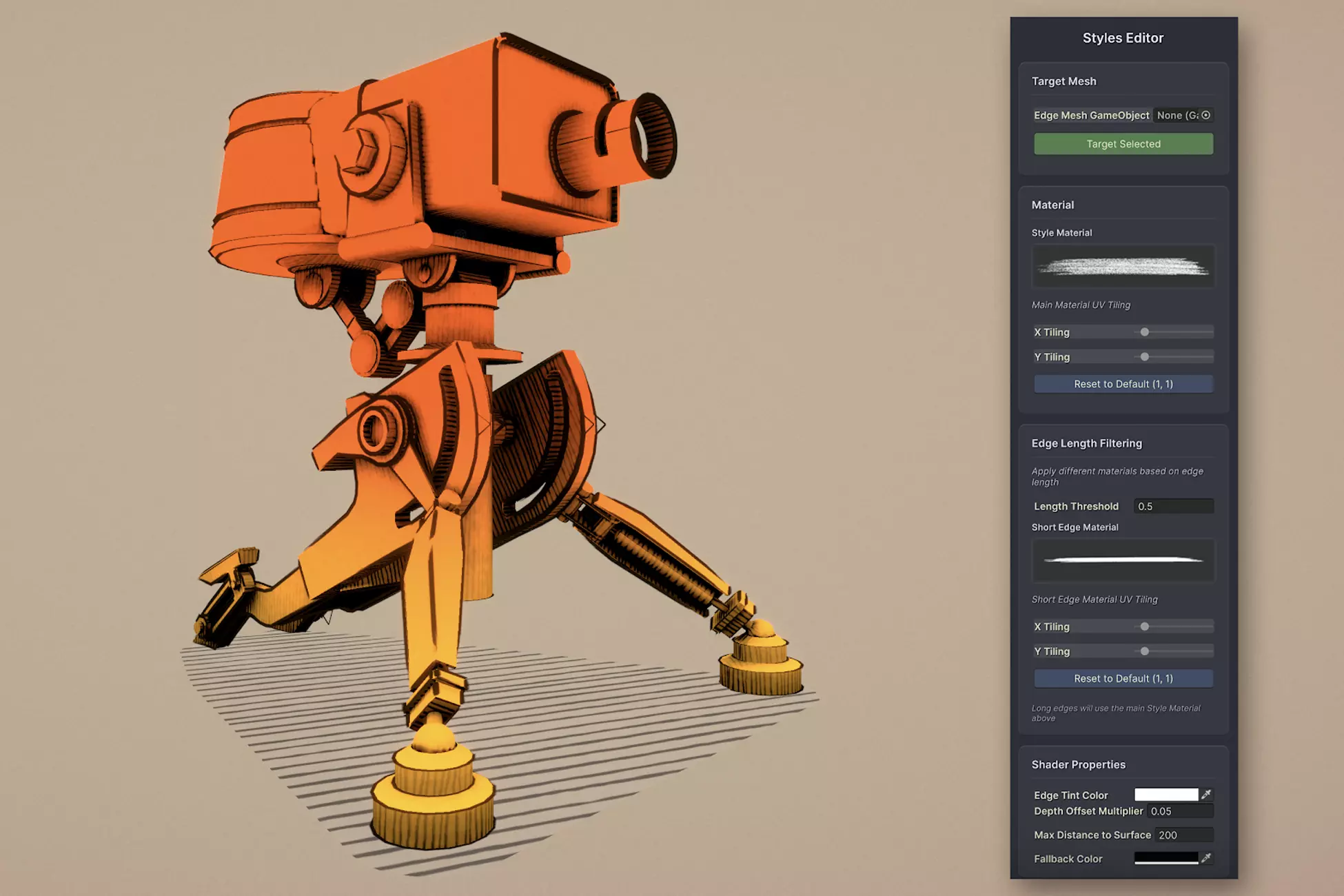
Once you have the edges, the Styles Editor takes care of how they look. It focuses on materials, UV tiling, and shader properties.
You can::
- Assign a main sketch material from the Croquis library or your own shaders.
- Control UV tiling on X and Y to decide how strokes are stretched or repeated.
- Set a length threshold to treat short and long edges differently, with a separate material for short edges if needed.
- Adjust common shader parameters such as:
- Edge tint color
- Depth offset to prevent z fighting
- Maximum distance where lines remain visible
- Fallback color when edges are too far
This gives you a way to iterate on the final look without touching the generator again.
Edge Cleaner – Fix and Polish
Even with a smart generator, some lines will not be useful artistically. Edge Cleaner exists for that last step of polish.
It provides an interactive scene view workflow to:
- Detect and highlight duplicate quads and remove them in one action.
- Detect tiny edges under a configurable threshold and select them as a group.
- Select quads by clicking, drag selecting, or growing the current selection to nearby strokes.
- Delete selected triangles, with an internal undo stack so you can safely experiment.
The tool uses colored highlights to show duplicates, tiny edges, and your current selection, so you see what will disappear before applying changes.
For the Technically Curious
Under the hood, Croquis analyzes your mesh triangles, finds boundary edges and UV seams, and builds quad strips on top of them with proper UVs. It stores some data in UV channels so the Styles Editor can filter short and long edges, and the Edge Cleaner can detect tiny segments. (More info)
You do not need to worry about these details to use the tool, but it is useful to know that the system is built around actual geometry rather than a simple screen space effect.
Upcoming Crosshatch Shader
Croquis Sketch Editor is still growing. In a follow up post, the author showcased a crosshatch shader that will be included in a future update and support all pipelines. This expands the current sketch system with a denser illustration style for shading and textures.
If you are planning a long term NPR pipeline in Unity, this is worth tracking as it opens more styles without changing your core workflow.
Similar and Useful Tools
- Linework: Outlines and Edge Detection: A Unity asset that provides outline and edge detection shaders to create contour lines and highlight edges on models.
Differences: Linework uses shader-based edge detection rather than mesh-generation of quads, which can be lighter and more flexible for some pipelines. Croquis gives more manual control via edge mesh generation and material styling.
- SKETCH FX: Hand‑Drawn Screen Effect Pack: A Unity asset that applies hand-drawn visual effects (pencil strokes, sketch overlays) via screen-effect shaders.
Differences: SKETCH FX focuses on full-screen stylized visual overlays (2D/3D) rather than mesh-edge generation tied to model geometry. Croquis operates at mesh level and offers edge mesh generation for outlines, giving more object-specific control.
✨ Croquis Sketch Editor is now available on the Unity Asset Store.
📘 Interested in building your own tools and shaders in Unity? Check out the Unity Tool Development Bundle, which includes Shaders & Procedural Shapes in Unity 6 and Unity 6 Editor Tools Essentials.
📘 Interested in building your own tools and shaders in Unity? Check out the Unity Tool Development Bundle, which includes Shaders & Procedural Shapes in Unity 6 and Unity 6 Editor Tools Essentials.
Math + Procedural shapes + Tools in Unity! If you're into technical art, this Bundle is what you need 🔗 https://t.co/MflVh7KJnp#unity3dgamedevelopment #indiedevs #gamedevs pic.twitter.com/LHN2ci83SN
— The Unity Shaders Bible (@ushadersbible) November 8, 2025
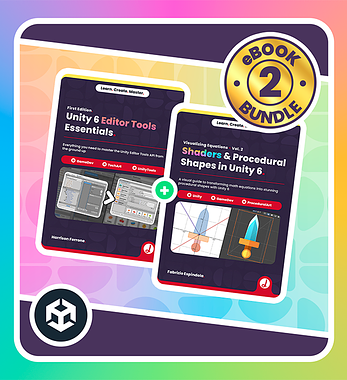
Level up your Technical Art skills! Grab our bundle and start learning today.
We invite you to explore "Unity Tool Development Bundle", a comprehensive bundle on the concepts and fundamentals seen in this post.
Other posts that might interest you.
-
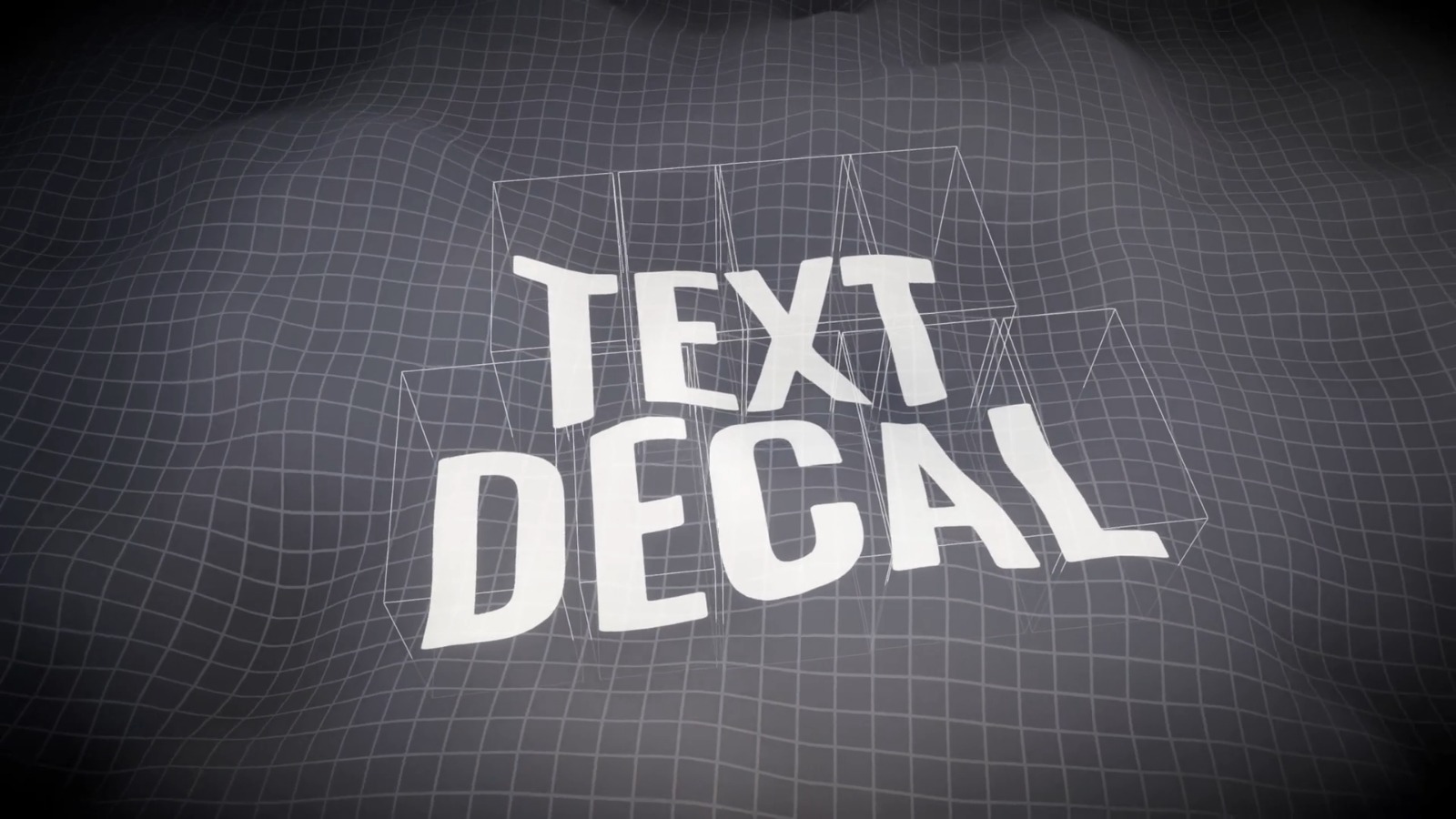 We take a look at Text Decal by Kirill Chikalin, a Unity tool that projects live TextMesh Pro text onto 3D surfaces using URP decals, without baking textures.
 -
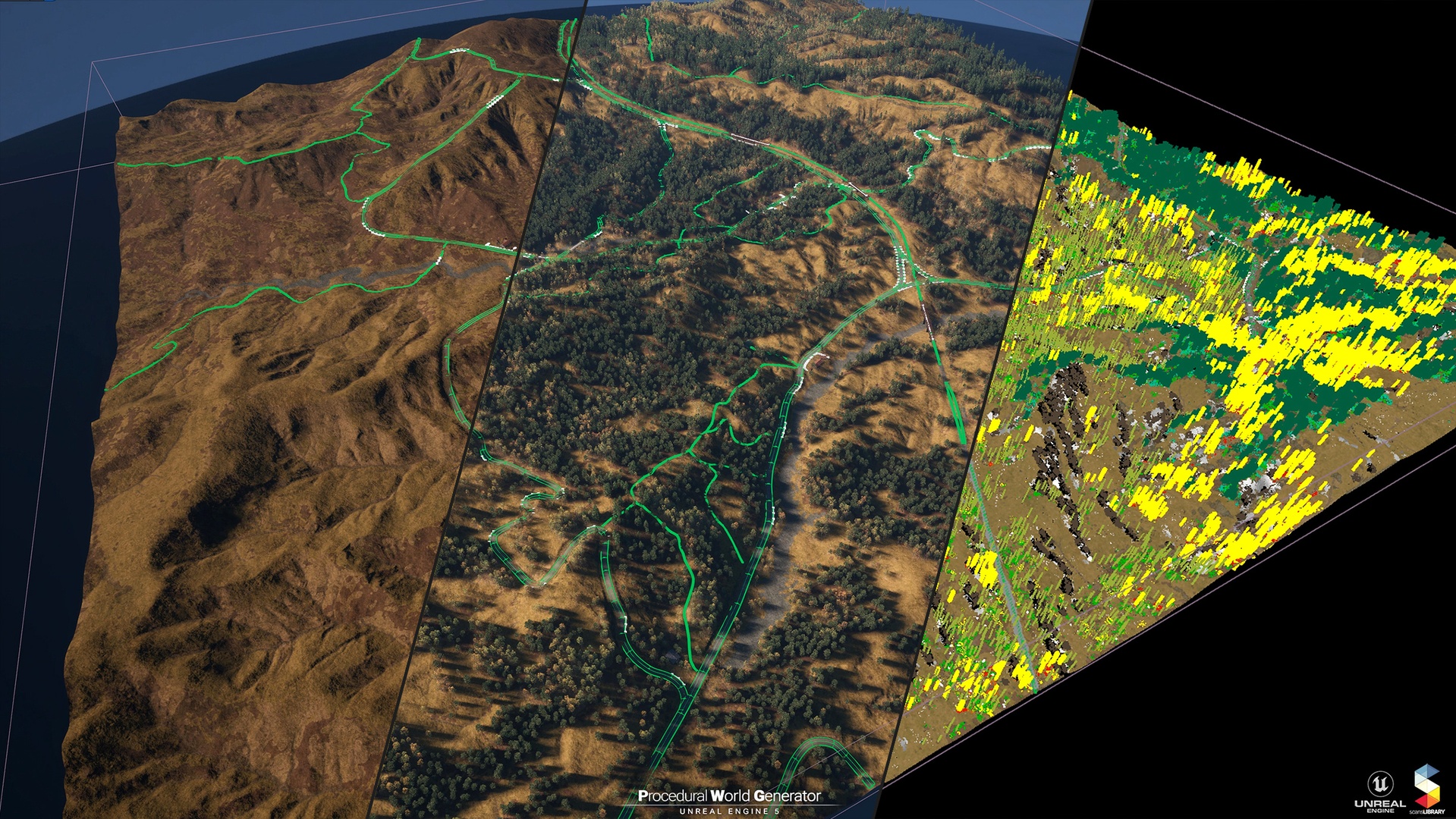 We take a look at Procedural World Generator by ScansLibrary, a UE5 toolkit built on Landscape Layers and PCG, featuring scanned ecosystems, road systems, and season-ready materials.
 -
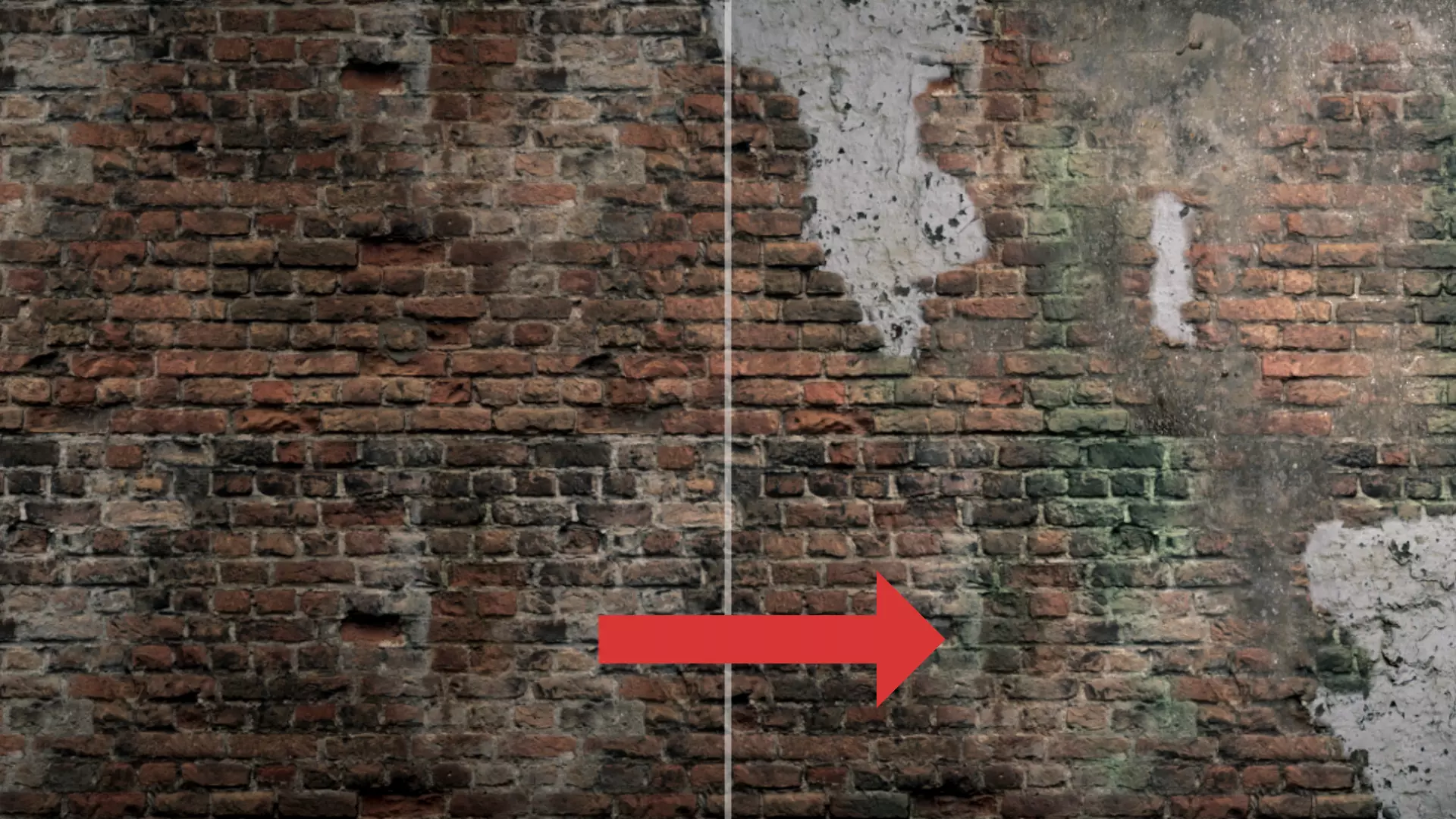 We take a look at RealBlend, a Unity tool by AdamNapper that combines multi-layer vertex painting, in-editor sculpting, and procedural mesh generation in one pipeline for HDRP and URP projects.
