
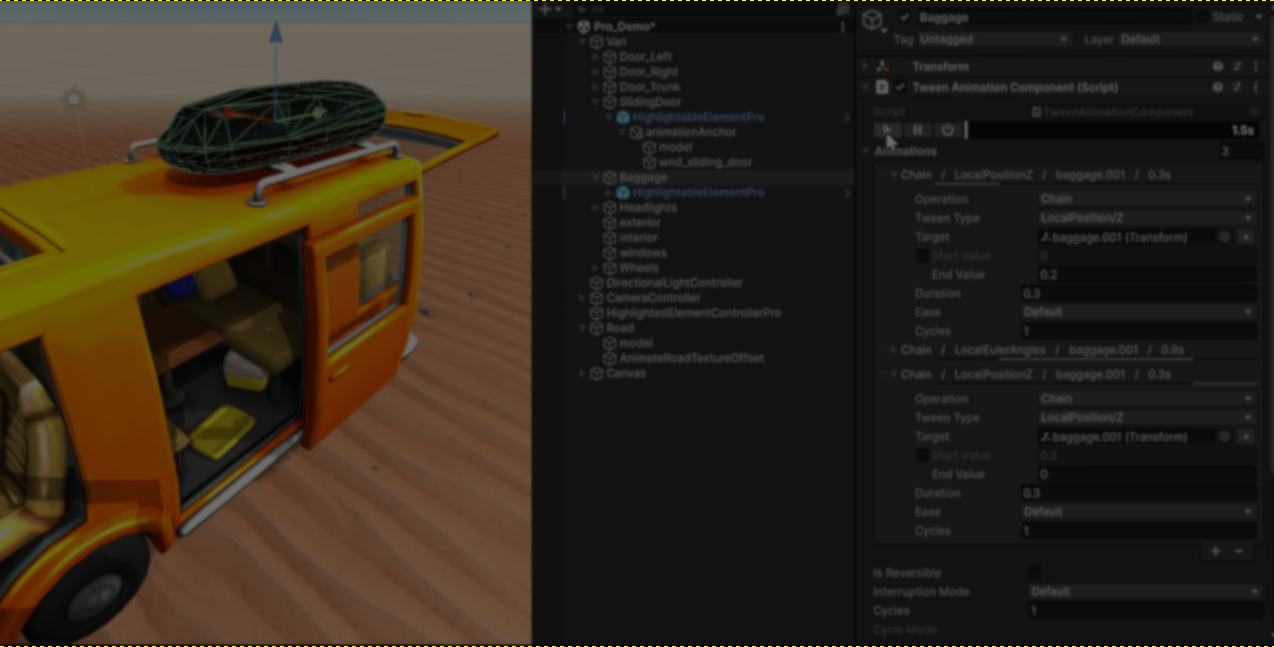
Kyrylo Kuzyk, the developer behind PrimeTween, recently shared some technical details about how the new Inspector-based animation system for PrimeTween PRO was made in Unity.
Originally released as a free tweening library for Unity, PrimeTween was made for fast, allocation-free animations and animation sequences. According to Kyrylo, more than 15,000 Unity developers have downloaded this version so far.
But, what actually changes in this new version?
According to Kyrylo, the main idea behind PrimeTween PRO was making the full animation system work directly from the Inspector, while still behaving the same way as the regular C# version.
One of the first decisions during development was making the controls feel as native to Unity as possible. PrimeTween PRO mostly relies on Unity’s default Inspector elements and list controls, including the normal add buttons and drag-and-drop reordering already built into the Editor.
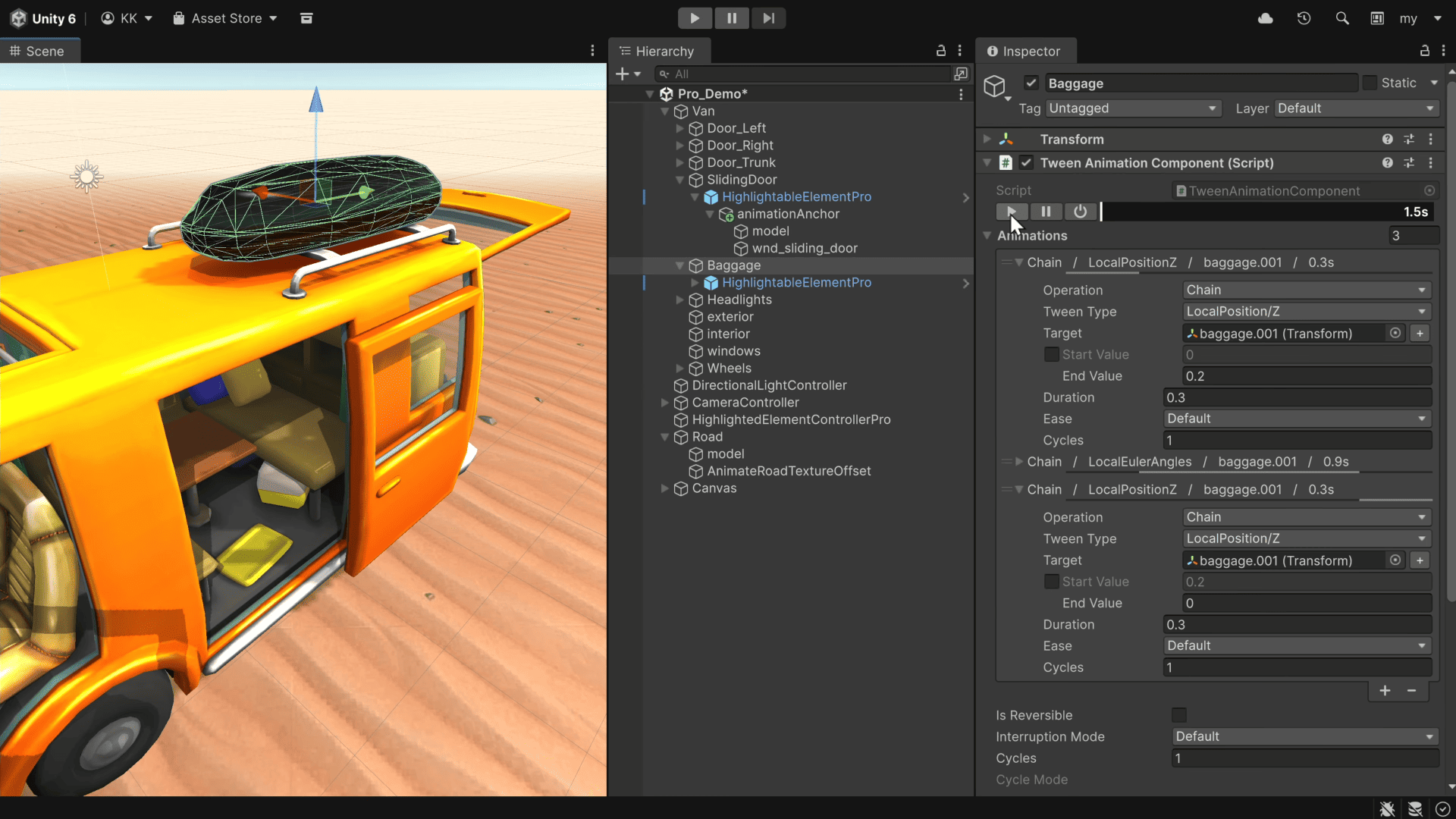
Another important part of the system was keeping the Inspector setup close to the regular PrimeTween code structure. Methods like Group(), Chain(), and Insert() translate into the Inspector settings, making it easier to work with both scripting and inspector properties for animations.
According to Kyrylo, many of these decisions came from problems encountered while developing his own game, .projekt. One example was a repeating bounce animation that:
- Loops forever while active
- Finishes the current cycle when stopped
- And continues smoothly if reactivated while stopping
This type of behavior appears constantly during game development in things like loading icons, blinking UI warnings, and interaction highlights.
To compare both approaches, Kyrylo shared an example of how this behavior could be implemented using DOTween:
# Example code by the developer

void PlayRepeatingAnimation() {
    if (!_Animation.IsActive()) {
        _Animation = transform.DOLocalMoveY(2, 0.5f)
            .SetLoops(-1, LoopType.Yoyo);
    }
}

IEnumerator StopAtInitialPosCoroutine() {
    int completedLoops = _Animation.CompletedLoops();
    int loopsTilInitialPos = completedLoops % 2 == 0 ? 2 : 1;

    yield return _Animation.WaitForElapsedLoops(
        completedLoops + loopsTilInitialPos
    );

    _Animation.Kill();
}
The same behavior in PrimeTween PRO can instead be handled through the Inspector using TweenAnimation:
# Example code by the developer

[SerializeField] TweenAnimation _jumpAnimation =
    new TweenAnimation {
        cycles = -1,
        animations = new List<TweenAnimation.Data> {
            new TweenAnimation.Data {
                tweenType = TweenAnimation.TweenType.LocalPositionY,
                duration = 0.5f,
                cycles = 2,
                cycleMode = CycleMode.Rewind
            }
        }
    };

void Update() {
    if (Input.GetKeyDown(KeyCode.A)) {
        _jumpAnimation.state = true;
    }

    if (Input.GetKeyDown(KeyCode.D)) {
        _jumpAnimation.state = false;
    }
}
If you want to learn more about PrimeTween or follow Kyrylo, the links will be right below.
Interested in learning more?
If you’re interested in learning shaders in Unity, The Unity Shaders Bible covers everything from the basics of Shader Graph and HLSL to more advanced topics like lighting models, ray marching, and compute shaders. 📘
Interesting fact: Most of the technical artists hired in the game industry know Python, C# (or C++) and HLSL. 👀
— Jettelly Inc. (@jettelly) December 5, 2025
And The Unity Shaders Bible can definitely help you get there. ✨
🔗 https://t.co/fw4pna2vUj#gamedev #unity3d #madewithunity #indiedev pic.twitter.com/nnMiBdXhJm
Jettelly wishes you success in your professional career!
Did you find an error? No worries!
Write to us at [email protected], and we'll fix it!
Level up your Technical Art skills in Unity!
We invite you to explore "The Unity Shaders Bible", a comprehensive book on the concepts and fundamentals seen in this post.
Other posts that might interest you.
-
.jpg) Technical Artist Abdoullah Hesham released Shape FlowPath, a procedural tunnel generation system built with Geometry Nodes for Blender and Unity.
Technical Artist Abdoullah Hesham released Shape FlowPath, a procedural tunnel generation system built with Geometry Nodes for Blender and Unity. -
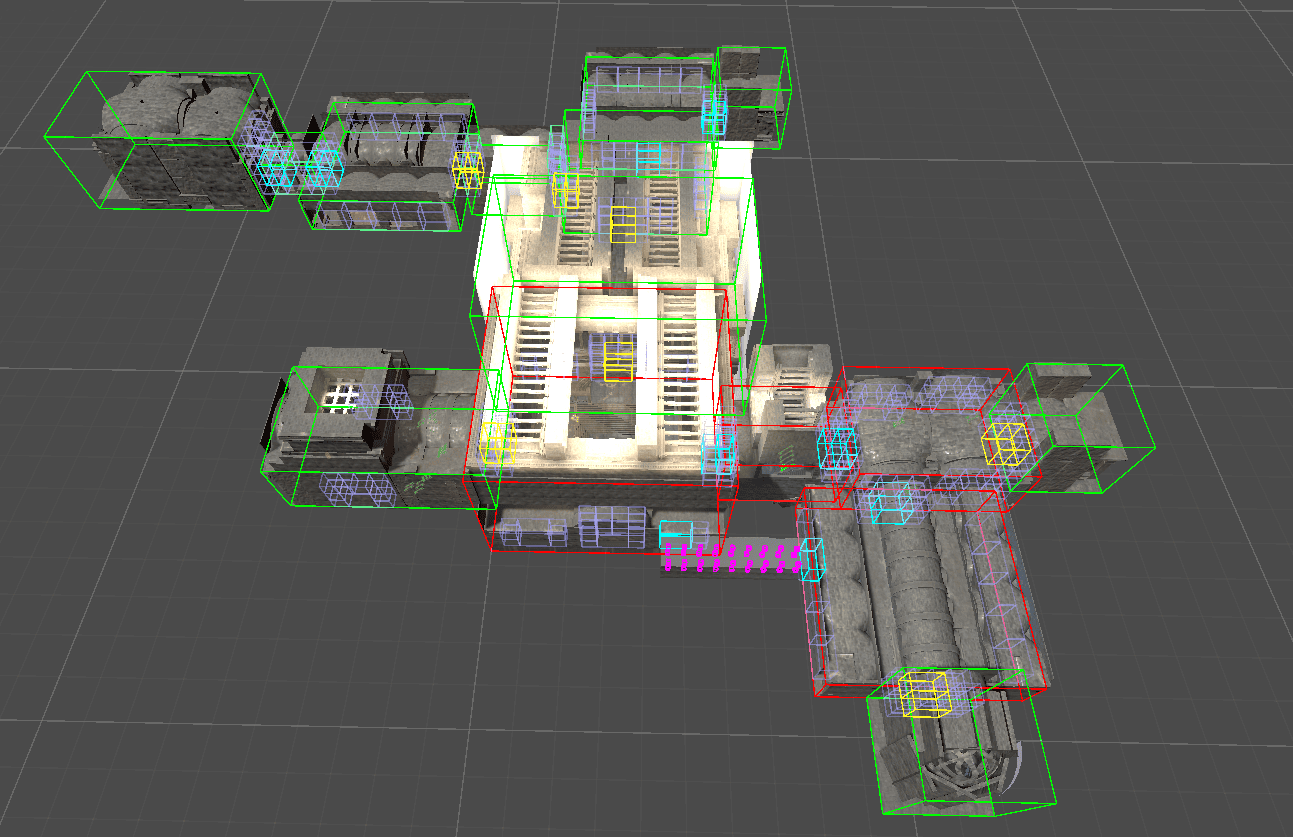 See how Mad Yeti Games did the procedural dungeon generation and timeline-based combat systems behind its upcoming action RPG.
 -
.png) See how Miriam Martin Sánchez built a potion shader in Unity URP, combining C# and Shader Graph to create a liquid effect that reacts to movement.
See how Miriam Martin Sánchez built a potion shader in Unity URP, combining C# and Shader Graph to create a liquid effect that reacts to movement.
